How to Manage and Renew Your PS Plus Subscription Safely in Kenya
A practical guide for Kenyan players: check your PS Plus status, understand auto-renew, stack or renew memberships, match your account region, avoid scams and protect your PlayStation Network…
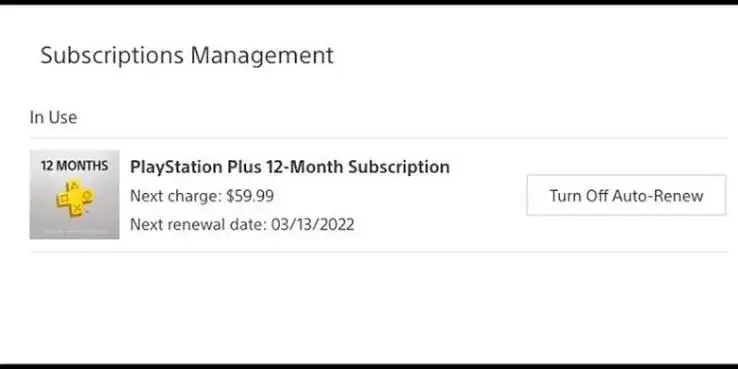
From the Mega Store Kenya team: Here is the Mega Store Kenya take, written for anyone weighing up their options before they buy. Want to see something in person? Visit New Alnoor Exhibition, Shop 7, Taveta Road, or WhatsApp 0740 922 861 and we'll tell you what's in stock today.
Buying a PlayStation Plus membership is the easy part. The harder part is what comes after: knowing when it ends, deciding whether to renew, making sure the renewal matches your account, avoiding scams, and keeping your account safe. Many Kenyan players only learn these things after something goes wrong, for example when a membership quietly lapses in the middle of a tournament, when a code does not work because of a region mismatch, or when an account is stolen.
This guide, from the team at Mega Store Kenya in Nairobi, walks you through managing and renewing a PlayStation Plus subscription safely. It covers how to check your status, what auto-renew means, how renewals and extensions work, how to match the region, how to protect your account, how to recognise scams and what to do if something goes wrong.
Menu names on PlayStation consoles change with system updates, so we describe where to look rather than give exact button-by-button instructions. We also avoid promising anything that depends on Sony's changing rules. When in doubt, check Sony's current information or ask us.
Part 1: Know what you have
Before you renew anything, find out exactly what you have now. You need four facts.
- Which plan you have: Essential, Extra or Premium.
- Which region your account belongs to: for example South Africa, USA, UK or UAE.
- When your membership ends.
- Whether auto-renew is on.
Where to find your subscription details
On a PlayStation console, your subscription details are found in the settings, under your user and account settings, in the section for payment and subscriptions. You can also manage your account from a web browser by signing in to your PlayStation account. The exact menu wording changes from time to time, so look for the words subscriptions or membership.
Write down the end date and put a reminder in your phone's calendar one week before. A reminder is the simplest tool for avoiding a lapse.
Know your account's region
Your PlayStation Network account has a region, and it is set when the account is created. Memberships and gift cards must match the region of the account. If you are not sure which region your account belongs to, check your account settings before you buy anything. Our regions guide explains why this matters so much.
Part 2: Understand auto-renew
What auto-renew does
When you pay for a membership through the console's store with a stored payment method, the membership may be set to renew automatically at the end of its term. Auto-renew keeps your membership running without a break, but it also means that a payment can be taken without you doing anything.
Should you leave it on?
- Leave it on if you play online regularly, you use the membership all year, and you are happy with the plan. Auto-renew prevents a surprise lapse.
- Turn it off if you are unsure whether you will keep playing, money is tight for you, or you want to choose your plan and duration each time.
Turning off auto-renew does not cancel the membership you have already paid for. It only stops the next renewal. You keep your benefits until the end date.
Managing auto-renew
In the subscription settings, you can see whether auto-renew is on, and you can switch it off. If you are using a different method, such as a code or a membership delivered by a seller, auto-renew may not apply to you at all. Check your subscription page to see what it says.
Beware of surprise renewals
If you have a payment card stored on your account, check that you recognise every subscription on it. Review your payment methods occasionally, remove any you no longer use, and keep an eye on your statements.
Part 3: Renewing and extending
The simple case: renewing a plan
When your membership is about to end, you can renew the same plan, or choose another plan or duration. If you buy a membership of the same region as your account, it is added to your account.
Stacking memberships
Sony's system generally allows you to add more membership time to an existing subscription, so that the new time starts when the old time ends. The details, including any limits on how far ahead you can stack, are set by Sony and can change. Because of this, we recommend that you do not stack more than you need, and that you check the current rules before buying a long period ahead. Our duration guide helps you think about 1, 3 or 12 months.
Changing plans
If you want to move from Essential to Extra or Premium, or the other way, the options in the membership system depend on your account and region. Upgrades are generally possible, while moving down to a lower plan usually happens at the next renewal. Because Sony controls these rules, check your subscription page, or ask us before you buy a long plan if you think you might change.
When should you renew?
- Renew before the end date if you play online daily and do not want a break.
- Renew when you actually need it if you play online only in some seasons, for example during school holidays.
- Do not wait until the last minute if you are buying from a seller, because delivery and processing can take time.
What happens if it lapses?
If your membership ends and you do not renew, you lose access to online multiplayer, monthly games and catalog games that depend on the membership. Cloud-saved data is kept for a period set by Sony, and when you renew, your access returns. If you have been playing games that came with the membership, they are not yours to keep. You will need an active membership to play them again.
Part 4: Buying the right membership for your account
Match the region
This is the rule that causes the most problems. A membership for the wrong region will not work on your account. If your account is a South African account, buy a South African membership. If it is a US account, buy a US membership. The same goes for the UK and the UAE.
Match the plan and the duration
Be clear about what you are buying: Essential, Extra or Premium, and 1 month, 3 months or 12 months. Read the product details carefully before you pay, and ask if anything is unclear. The plans are explained in our plan comparison guide.
Ask how it reaches your account
Different sellers deliver memberships in different ways. At Mega Store Kenya, we confirm how the membership reaches your account when you order. Ask any seller to explain the delivery method before you pay. A legitimate seller should be able to tell you clearly what you will receive and what you need to do.
Never give your password
You should never need to give your password, your two-step verification codes or your recovery details to anyone in order to buy or renew a membership. If a seller asks for them, walk away. Your account is yours.
Part 5: Protecting your PlayStation Network account
A PlayStation Network account holds your games, your saves, your friends and sometimes your payment details. Protect it.
Turn on two-step verification
Two-step verification adds a second check when you sign in, so that someone who has your password still cannot get in without the second step. Turn it on in your account's security settings. Keep your recovery options up to date.
Use a strong, unique password
Use a long password that you do not use anywhere else. A password manager can help you keep track. Change your password if you think it has been exposed.
Use an email address you control
Your account's email address is the key to recovering your account. Use an address you own, keep its password strong and turn on two-step verification there too.
Do not share your account
Sharing an account may seem convenient, but it carries real risks: you can lose access, the other person can change the details, and sharing may break the service's rules. If family members want to play, create separate accounts, and use the console's family features where appropriate.
Watch for phishing
Phishing messages pretend to be from PlayStation, a seller or a friend, and ask you to click a link and sign in. Common signs include urgency, spelling mistakes, unfamiliar sender addresses and links that do not go to the real website. If you receive a suspicious message, do not click. Go to the official website or app directly.
Keep your console's software up to date
Updates fix security problems. Install them when prompted.
Part 6: Recognising scams
PlayStation Plus is popular, and scammers go where the money is. These are patterns to watch for.
Common scams
- Too-good-to-be-true offers. A seller offering a membership far below the normal market, usually through an unfamiliar social media account.
- Requests for your login details. Anyone who asks for your password or verification codes is a risk.
- Fake support messages. Messages claiming that your account has a problem, and asking you to pay or sign in through a link.
- Fake codes. Codes sold to several people at once, or codes that do not match your region.
- Pressure to pay immediately. Genuine sellers do not rush you.
- Sellers who disappear. No shop, no phone number, no receipts, and a new account name every week.
How to protect yourself
- Buy from a seller with a shop or a verifiable business presence, and a phone number that is answered.
- Keep receipts and records of every order, including messages.
- Ask questions before you pay. A good seller answers clearly.
- Pay through traceable means, such as M-Pesa to a registered number, and keep the confirmation message.
- Check the region and plan before you pay, and again after delivery.
- Never share secrets, such as your password or codes.
- Trust your instincts. If something feels wrong, stop.
Mega Store Kenya is at New Alnoor Exhibition, Shop 7, Second Floor, Taveta Road, Nairobi CBD. You can call or WhatsApp us on 0740 922 861 and write to [email protected]. We accept M-Pesa.
Part 7: If something goes wrong
The membership does not appear
- Wait a few minutes, then restart the console and check the subscription page.
- Check that you are signed in to the correct account, the one the membership was meant for.
- Check the region. A membership for another region will not apply.
- Contact the seller with your receipt and order details.
The code or membership does not work
- Re-read the instructions you were given.
- Check for typing mistakes in codes.
- Check the region and plan against what you ordered.
- Contact the seller promptly, with screenshots of any error message.
You think your account has been compromised
- Change your password immediately from a device you trust.
- Turn on two-step verification if it was not on.
- Check your account's sign-in activity and payment methods, and remove anything you do not recognise.
- Contact PlayStation support through the official channels.
- Tell your bank or mobile money provider if you see unauthorised payments.
- Change the password on your email account too.
You were charged and did not expect it
Check the subscription page for auto-renew, and review any stored payment methods. If the charge was made by mistake, contact the payment provider and PlayStation support through official channels.
Part 8: A renewal routine you can follow
Use this simple routine so you never get caught out.
One month before the end date
- Check your plan, your end date and your region.
- Decide whether you still play online enough to renew.
Two weeks before
- Decide on the plan and duration you want.
- Ask your seller about availability and delivery.
One week before
- Place your order, if you have decided to renew.
- Put the new end date in your calendar.
After you renew
- Check that your subscription page shows the new details.
- Keep your receipt.
- Decide whether to leave auto-renew on.
Every few months
- Review your payment methods.
- Check your account security settings.
- Update your password if needed.
Part 9: Special situations
Gifting a membership
If you buy a membership for someone else, ask for their account's region and plan first. A gift for the wrong region cannot be used. Do not ask them for their password. If a membership is delivered as a code, they can add it to their own account themselves.
Family and shared consoles
If a console is shared, use separate user accounts for each person. Make sure the membership is attached to the account of the person who will use the online features, and understand that benefits may depend on the console's setup and the account in use. Check how your household set-up works before you buy several memberships.
Moving house, changing phone numbers or emails
Update your account's contact details as soon as they change. If you lose access to your email or phone number, recovering your account can be difficult.
Selling or giving away your console
Before you sell or give away a console, sign out of your account on it, deactivate it as your primary console if the console had that setting, and reset it to factory settings. This protects your account and your data.
Travel
If you travel, your membership is tied to your account and not to your location, but online services and cloud streaming availability can depend on where you are. Check Sony's information if you plan to play abroad.
Frequently asked questions
Can I get a refund if I buy the wrong region?
Refund rules depend on the seller and on Sony's terms. Check the region before you pay, because it is far easier to prevent the problem than to fix it. At Mega Store Kenya, we confirm the details with you at order time.
Does turning off auto-renew cancel my membership?
No. It only stops the next payment. You keep your membership until the end date.
Can I buy 12 months and add more later?
Usually yes, but there are limits set by Sony, and they can change. Check the current rules before you buy a large amount of time in advance.
Will I lose my saved games if I let my membership lapse?
Cloud-saved data is kept for a period set by Sony, and your local saves on the console stay on the console. Check Sony's current rules if you plan a long break.
Is it safe to give my account details to a seller?
No. You should never need to give your password or codes. If a seller asks, choose another seller.
What should I do if I cannot find my region?
Check your account's settings. If you still cannot tell, ask us before you buy, and we can help you work it out.
Do I need a payment card to renew?
Not always. The options depend on how you buy. Ask your seller what they accept. We accept M-Pesa.
How long does a renewal take?
Timing depends on the delivery method, so we confirm it when you order. Plan ahead, and do not leave a renewal until the last day.
Scenario walk-throughs
Reading rules is one thing, and applying them is another. These scenarios show how to handle common situations.
Scenario 1: "My membership ends next week and I want to keep playing."
- Open your subscription page and confirm the plan, region and end date.
- Decide whether to keep the same plan or change.
- Contact your seller or buy from your usual trusted source, and confirm the region and plan.
- Pay in a traceable way and keep the receipt.
- After the membership is added, check the subscription page for the new end date.
- Update your calendar reminder.
Scenario 2: "I bought a code and it says it is for another region."
Do not keep trying the code. Stop and contact the seller with a screenshot of the message. The membership must match your account's region, and a wrong-region code will not work. A good seller will help you work out what went wrong. This is why we always ask for your account's region before we sell.
Scenario 3: "I want to switch from Essential to Extra."
Check your subscription page for upgrade options, and ask your seller. The details depend on your account and region, and on Sony's rules at the time. If you are about to buy a long Essential plan and think you might upgrade, ask first.
Scenario 4: "I do not know which region my account is."
Look at the account's settings, or the store the console shows. If you still cannot tell, ask us before you buy. Do not guess.
Scenario 5: "Someone sent me a link saying my account will be suspended."
Do not click. This is a classic phishing message. Go to the official website or app directly to check your account. Sony and legitimate sellers do not ask for your password by message.
Scenario 6: "I bought a membership from a social media seller and they have stopped replying."
Keep all your messages, your payment confirmation and any screenshots. Contact your payment provider quickly about the transaction, and report the account to the platform. In future, buy from a seller with a real shop and phone number.
Scenario 7: "My child has been using my card on the console."
Remove the stored payment method from the account, turn on spending limits and family management features, and require a password for purchases. Talk to your child about why this matters.
Scenario 8: "I am going away for three months and will not play."
Turn off auto-renew so that nothing renews while you are away. Your current membership continues until its end date. When you return, buy a new membership that matches your region.
A record-keeping template
Keep a simple note, on paper or in your phone, with the following lines. Do not write your password in it.
- Account name or gamertag:
- Account region:
- Plan (Essential, Extra, Premium):
- Start date:
- End date:
- Auto-renew (on or off):
- Where I bought it and the date:
- Order or receipt number:
- Seller phone number:
- Reminder set for:
This record takes two minutes to make and can save you hours if there is a problem.
Questions to ask any seller before you pay
- Which region is this membership for?
- Which plan and what duration is it?
- How will it reach my account?
- How long will delivery take?
- Do you need my password or any codes? The answer must be no.
- What if it does not work? Ask what the seller will do.
- Can I have a receipt?
- Where is your shop, and what is your phone number?
If a seller avoids these questions, that is your answer.
Managing memberships in a household
When several people in a home play, a little organisation prevents arguments.
- Give each person their own account. It keeps progress, trophies and settings separate.
- Decide who pays for what. Agree whether the membership is shared, and how renewals are handled.
- Use family management features to set limits for children, such as play time, spending and who they can chat with.
- Keep one adult in charge of the account details, including email and recovery information.
- Review the setup each year, and remove accounts that are no longer used.
Recovering a lost or hacked account
If you lose access to your account, act quickly.
- Try the official account recovery process, using your email address or phone number.
- Check your email for any messages about changes to your account.
- Secure your email account first, because the PlayStation account can be recovered through it.
- Contact PlayStation support through the official channels with as much information as you can, such as the email address, the date of birth on the account and any purchase records.
- Keep your receipts, which can help prove ownership.
- Tell your seller if the problem is connected to a membership you bought.
Prevention is better than recovery, so turn on two-step verification now.
Spotting scam messages: common patterns
We will not quote exact scripts, but these patterns appear again and again.
- Urgency: "Act in the next hour or lose your account."
- Threats: "Your account will be banned."
- Rewards: "You won a free membership. Click here."
- Authority: A message claiming to be from support, asking for your details.
- Odd links: Links that look similar to real websites but are not.
- Payment first, details later: A seller who insists you pay before telling you anything.
When you see these, stop, breathe and check through official channels.
A printable renewal checklist
- I know my plan, region and end date.
- I have set a reminder one week before.
- I have decided whether to renew, upgrade or stop.
- I know my account's region and the membership I buy matches.
- I have confirmed how the membership will reach my account.
- I have not shared my password or codes with anyone.
- I have a receipt.
- I have checked my subscription page after renewing.
- I have reviewed my security settings.
A short glossary
Auto-renew: a setting that renews your membership automatically at the end of its term.
Phishing: a fake message designed to trick you into giving away details.
Region: the area your account belongs to, set when the account is created.
Stacking: adding more membership time on top of an existing membership.
Two-step verification: a second check, after your password, when you sign in.
More questions we hear
Can I pay for PS Plus with M-Pesa?
At Mega Store Kenya, yes, we accept M-Pesa. Ask any seller which payment methods they accept, and keep the confirmation message.
Should I buy from a friend who "knows a guy"?
Be careful. If the friend cannot tell you where it comes from, how it works and what happens if it fails, you carry the risk. Prefer a seller with a real shop and a phone number.
Can I use the same account on two consoles?
Account rules on multiple consoles are set by Sony and can change. Check Sony's current rules, and avoid sharing your account with people outside your household.
What happens to my membership if I change my email address?
Your membership is attached to your account, not to the email. Make sure you update your account's contact details correctly and keep access to the recovery email.
Can I get my membership back if my account is closed?
Closed or banned accounts are handled by Sony's support process, and outcomes vary. Prevent the problem by following the rules and protecting your account.
How early can I renew?
It depends on Sony's current rules about stacking. Check before you buy a long period in advance.
Does my membership work on a new console?
Your membership belongs to your account. Sign in on the new console with the same account to use it. Follow Sony's steps for transferring your data.
What should I do with old codes and receipts?
Keep receipts for at least a year, and keep proof of purchase for as long as the membership lasts. Delete codes that have been used.
Is it safe to save my payment details on the console?
It is convenient but increases risk if someone else uses the console. If you do, turn on a password requirement for purchases and review your payment methods regularly.
A final safety routine
Once every three months, take ten minutes to do the following.
- Check your subscription page for plan, region and end date.
- Review stored payment methods and remove unused ones.
- Check that two-step verification is still on.
- Update your password if it is old or reused.
- Look at recent account activity for anything you do not recognise.
- Check that your recovery email and phone number are correct.
- Review which devices are signed in to your account.
Ten minutes every quarter can save you from a very bad week.
Keeping your console and account safe at home
Account safety is not only about passwords. A few habits around the console itself matter too.
- Lock the console with a passcode if children or visitors use it, so that no one can change settings or make purchases while you are away.
- Sign out on shared or borrowed consoles. If you play at a friend's house, sign out when you leave.
- Do not save your password on shared devices.
- Be careful with public Wi-Fi when signing in to your account on a phone or laptop. Use your own mobile data if you can.
- Keep your phone secure, because it often holds the codes for two-step verification. Use a screen lock.
- Be careful with screenshots. Do not post screenshots that show codes, emails or account details on social media.
- Teach the household. Everyone who uses the console should know the basic rules: no sharing passwords, no clicking strange links, and ask before buying anything.
What a good seller does for you
A trustworthy seller does a few simple things every time. They ask for your account's region before they quote you. They tell you the plan and duration clearly. They explain how the membership reaches your account. They give you a receipt. They answer the phone after the sale. And they never ask for your password. If your seller does these things, you are in good hands. If they do not, take your business elsewhere.
Final word
Managing a PlayStation Plus subscription takes only a few minutes if you know what to check: your plan, your region, your end date and your auto-renew setting. Add a few security habits, two-step verification, a strong password and a healthy suspicion of offers that sound too good, and you will avoid almost every problem we see.
If you would like help choosing the right plan, region and duration, call Sales on 0740 922 861 or visit us on Taveta Road in Nairobi CBD. We are open Monday to Friday from 9am to 7pm and Sunday from 11am to 4pm, and closed on Saturday. We're on 0740 922 861 for help after you buy.